1
Open the form
Log in and click the blue button at the top of every page, or open My Dashboard and choose Add your machine.


The form step by step, with the screenshots of each section. It takes about 5 minutes if you have the data and the photos ready.
Log in and click the blue button at the top of every page, or open My Dashboard and choose Add your machine.
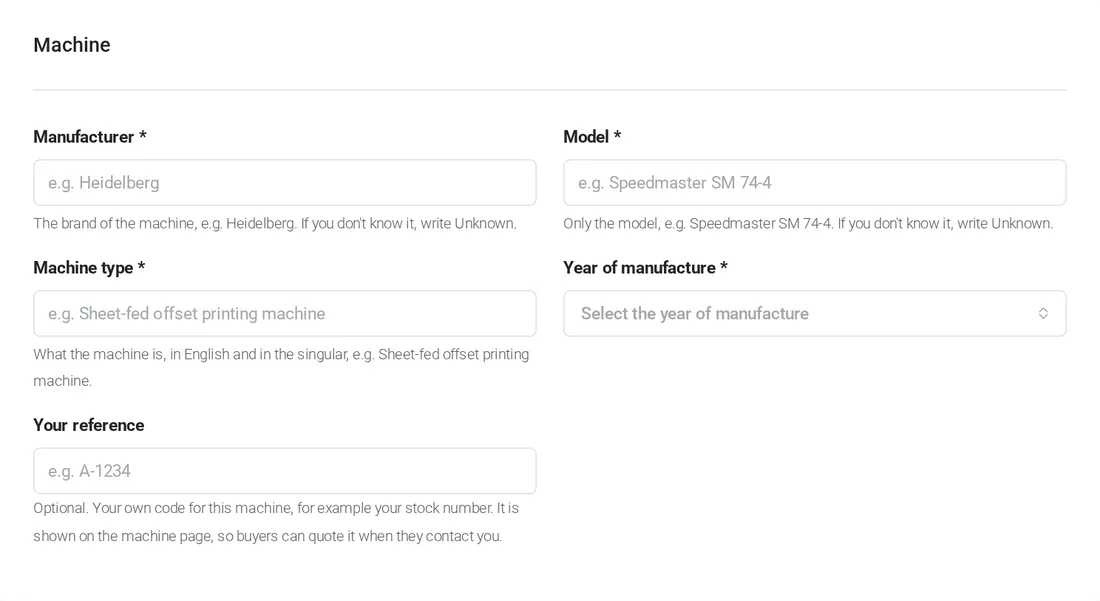
Enter manufacturer, model, machine type and year: the title of your listing is built from them, for example “Heidelberg Speedmaster SM 74-4”. In Your reference you can write your internal code: buyers can quote it when they contact you.
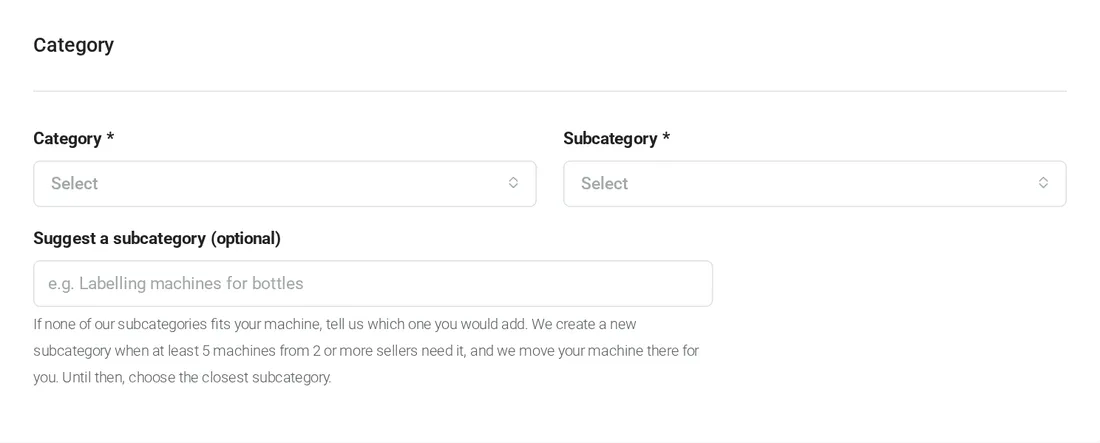
Choose the category and the subcategory that fit your machine best. If none fits, tell us in Suggest a subcategory: we create a new one when at least 5 machines from 2 or more sellers need it.
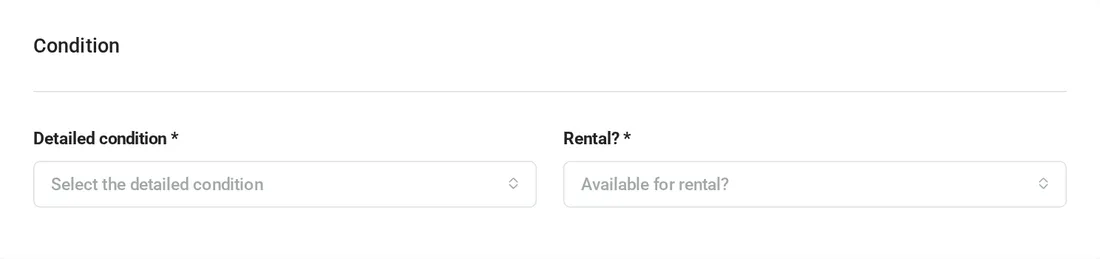
Choose the detailed condition, for example Good (used), Refurbished or New, and say if the machine is also available for rental.
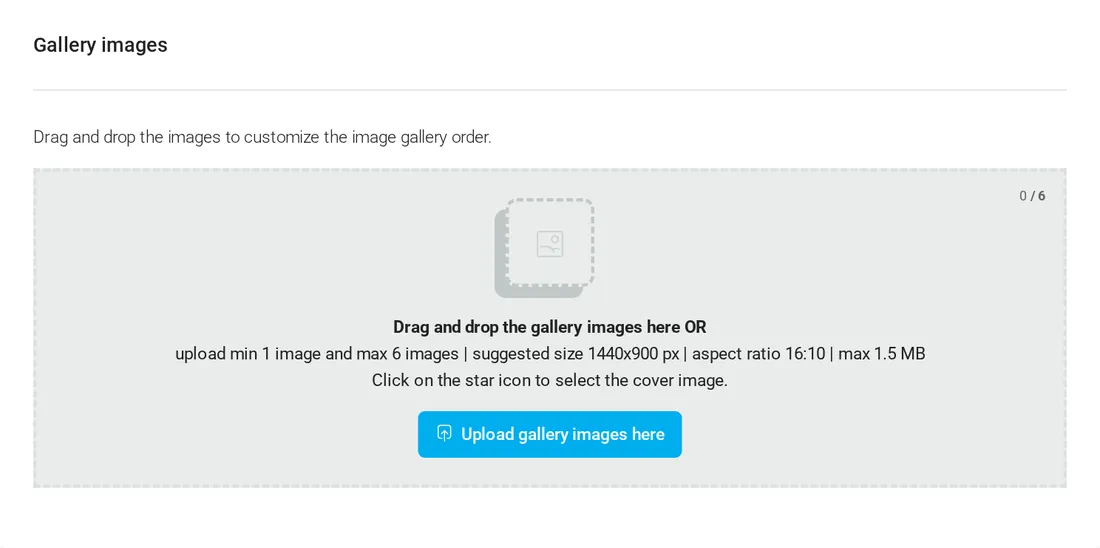
Upload from 1 to 6 photos: drag them to change the order and click the star to choose the cover photo. Suggested size 1440 × 900 px (16:10), up to 1.5 MB each.
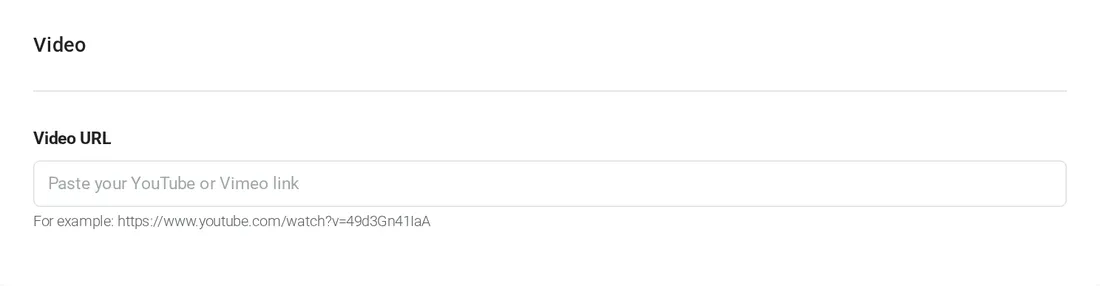
If you have a video of the machine, paste the YouTube or Vimeo link.
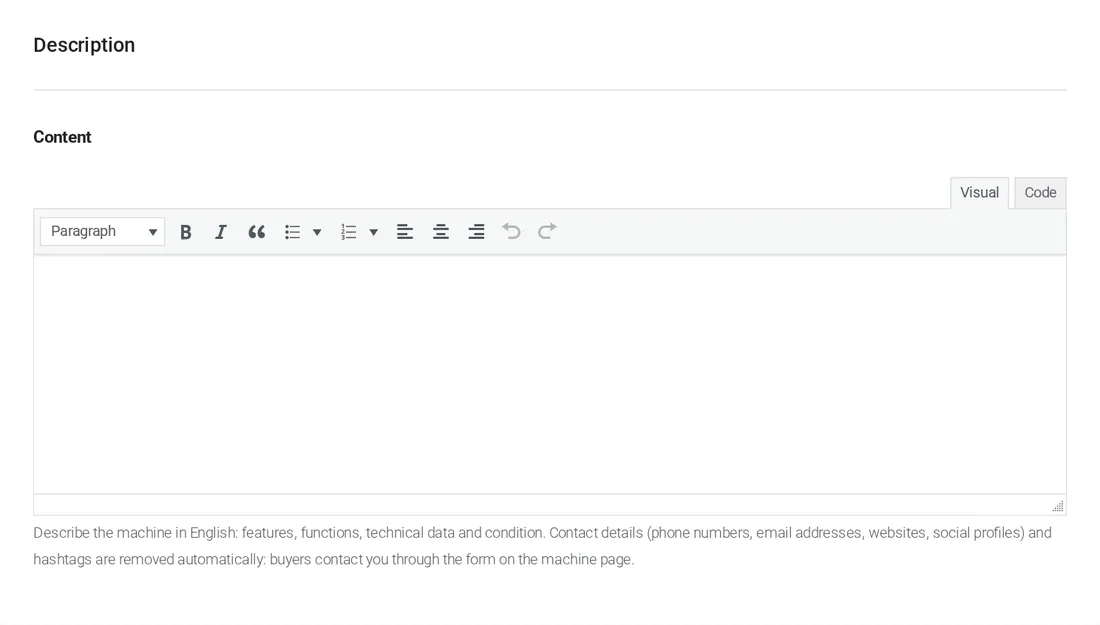
Describe the machine in English: features, functions, technical data and condition. Contact details and hashtags in the description are removed automatically: your contacts are already on the page.
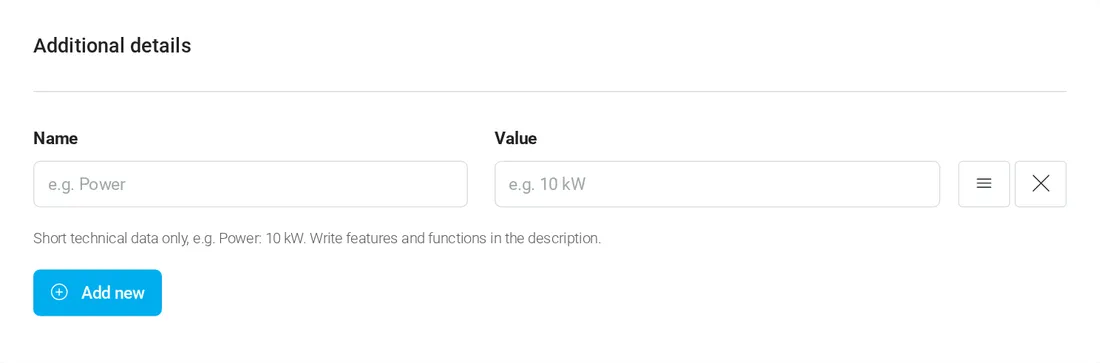
In Additional details add the main technical data, one line for each: a name and a value, for example “Max. sheet size” and “520 × 740 mm”.
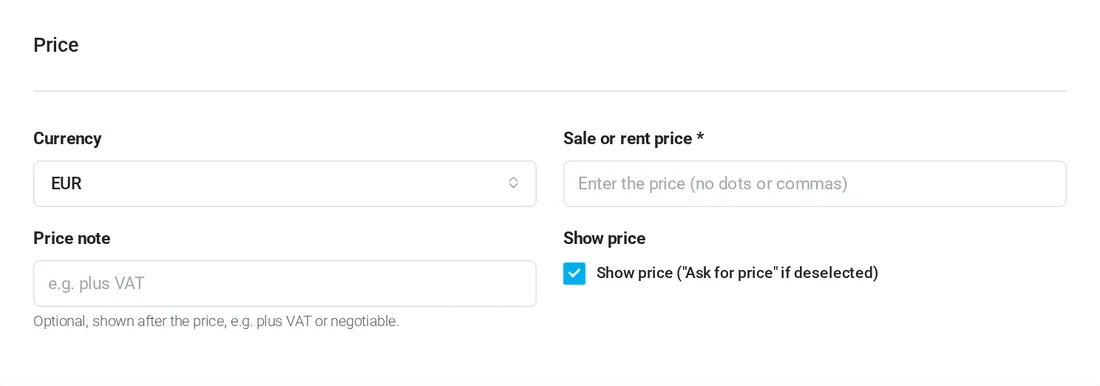
Choose the currency and enter the price without dots or commas. In Price note you can add, for example, “plus VAT” or “negotiable”. If you untick Show price, buyers see “Ask for price”.
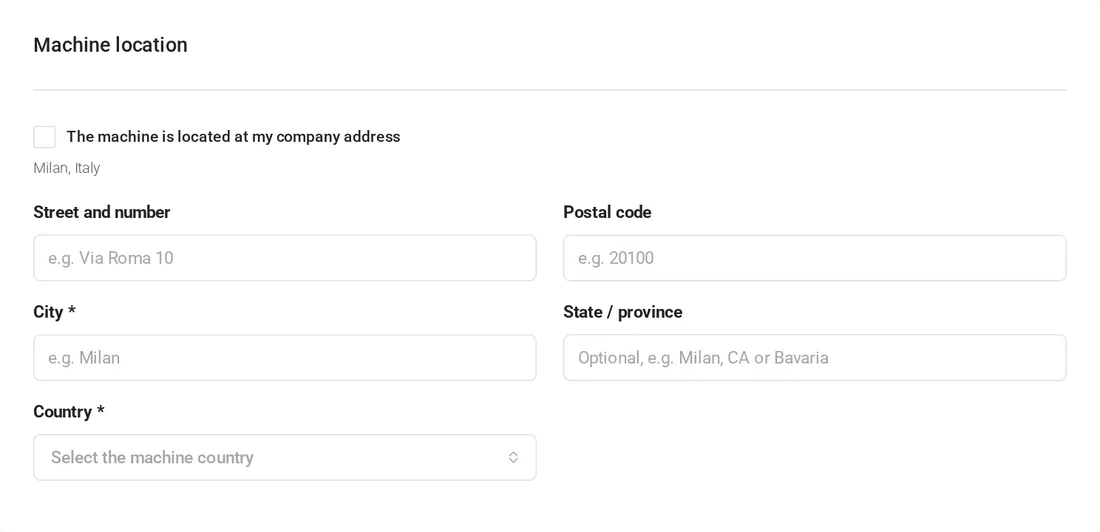
City and country are required. If the machine is at your company, tick The machine is located at my company address and the fields fill in by themselves.
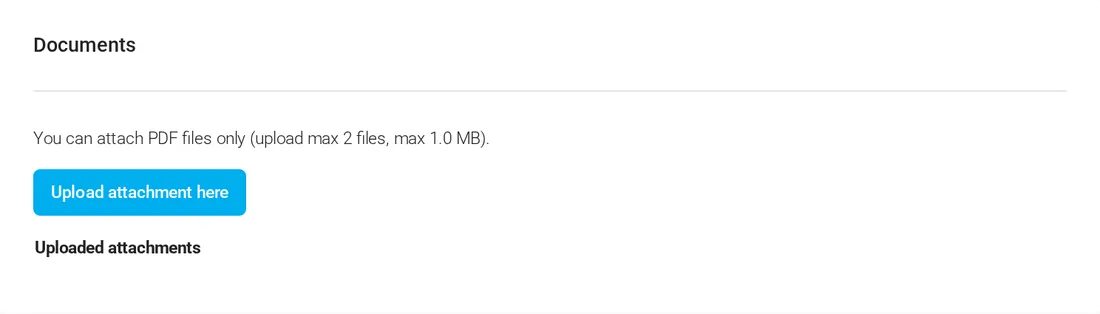
Attach manuals, layouts or technical sheets in PDF (up to 2 files, 1 MB each). The private note is only for you: buyers do not see it.
Click Submit machine to publish it, or Save as draft to finish later. You can change your machine at any time from My machines.

A machine without photos or with a required field empty goes back to draft, and you receive an email. It comes back online when you complete it and save.
One with the FREE plan, up to 1,000 with the paid plans. See Plans and payment.
No: add one machine per listing, so that buyers find each machine by manufacturer and model.
Buyers contact you directly, with no commission.
Add your first machine for free